

Before you start
- Confirm that browser-extension access is enabled and the extension is provisioned for your workspace.
- Sign in to both the Dubot dashboard and the customer product.
- Save the Test configuration you want to exercise.
- Choose a safe page and example account where the workflow cannot affect real customer data.
Extension access is provisioned during the current rollout. If it is not available to the
workspace or browser profile, ask your Dubot contact for the supported installation path.
Start a Test session
Open Workspace settings and scroll to Test session. Enter the safe product URL you want to preview.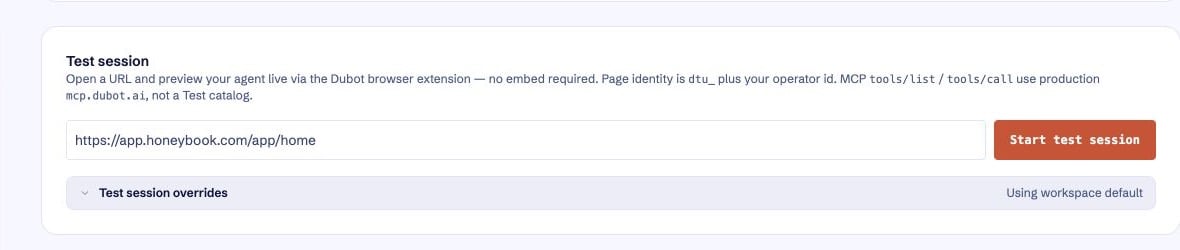
The Test session card starts a temporary browser-extension preview from Workspace settings.
- Confirm the target URL in the Test session card.
- If needed, open Test session overrides. The effective inject script can inherit the workspace setting or use your personal override. Starter (not saved) means Dubot is showing its built-in starter script and no script has been stored. Select Save my overrides only when you intend to keep a personal script or auto-open choice.
- Optionally enable Auto-open agent after inject, choose an agent, and choose Bubble, Sidebar, or Fullscreen for its presentation. With auto-open off, the extension initializes the page but does not open the agent.
- Select Start test session. The extension navigates to the target URL, injects the test setup, and reports the session status on the page and in the extension popup.
Standby pages skip test-session overrides and initialization. A target URL and a supported browser
page are required for an active session.