

If Guidance does not appear in the workspace navigation, it is not available for that
organization yet. Contact Dubot before planning an implementation around it.
Before you start
- Install the Dubot browser SDK on the pages where Guidance will run.
- Make sure the SDK supplies the current user and page context.
- Add workspace knowledge if the planner should ground steps in product documentation.
- Choose a safe Test journey with an explicit stopping point.
Configure the workspace
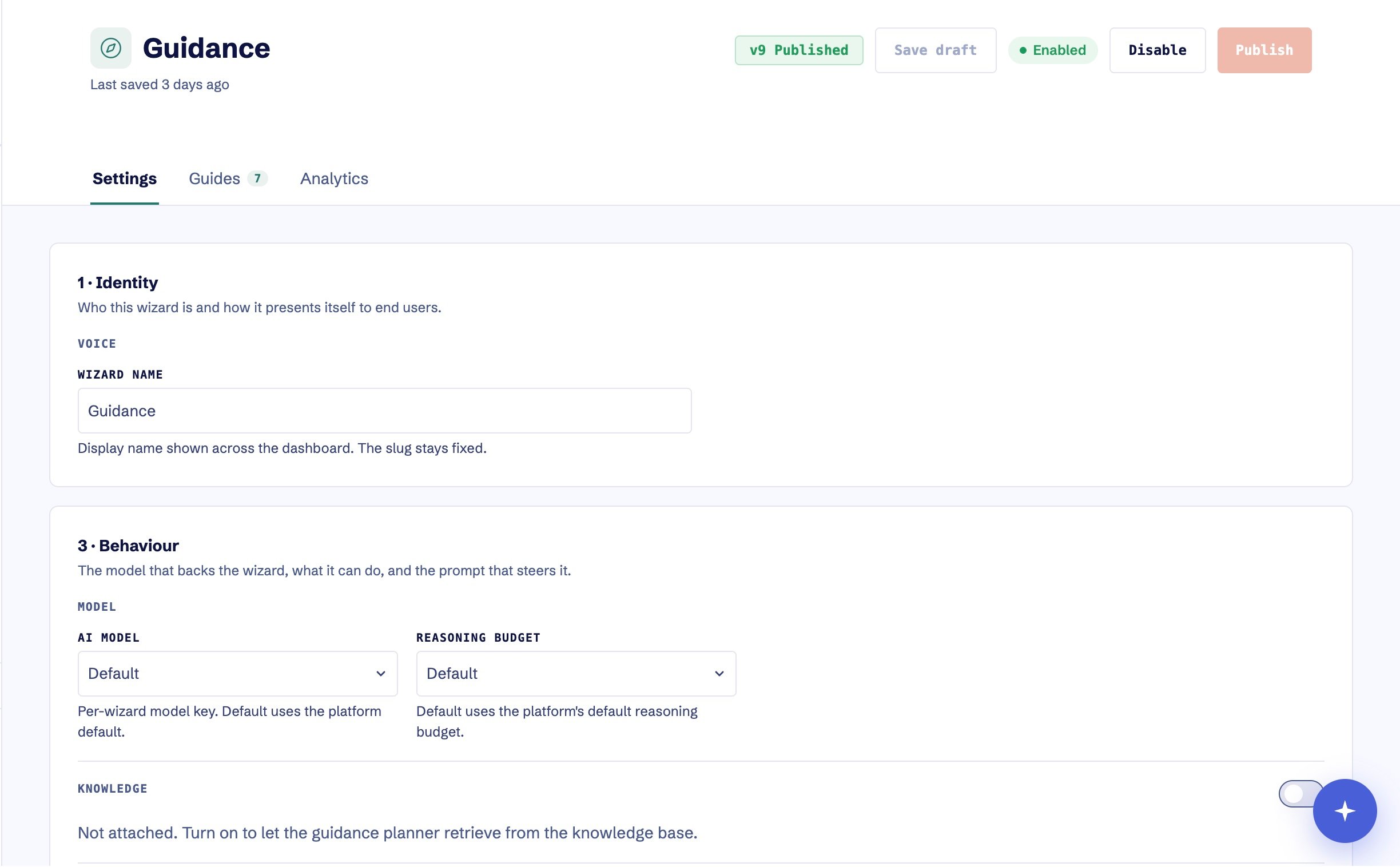
Guidance Settings shows the current version, enabled state, and the configuration tabs used to review and publish changes.
1
Open Guidance
Select Guidance, then open Settings. The status beside the page actions shows
whether Guidance is currently Enabled or Disabled.
2
Choose what Guidance knows
In Knowledge, turn on Attach knowledge base. Use the entire knowledge base or limit
retrieval to selected articles. Guidance can be published without knowledge, but its plans
will not be grounded in your product documentation.
3
Set behavior and stop conditions
Use Contextual booster for standing product instructions: tone, pacing, handoff copy,
actions the customer must complete, and conditions that should stop the walkthrough. Keep
these instructions true across guides and pages. Distinguish broad orientation requests from
task-specific work so a request for a product tour does not collapse into one navigation step.
4
Save the Test draft
Select Save draft. Saving changes Test only. If Guidance is already enabled, Production
continues to use the last published version until you publish again.
5
Exercise a representative walkthrough
Start a reviewed guide or a tightly constrained goal in the Test installation. Check target
selection, navigation, customer-owned steps, stop behavior, and the final outcome.
6
Enable and publish
When Guidance is disabled, select Enable & publish and confirm the version. When it is
already enabled, select Publish to replace the Production configuration.
7
Verify Production
Start the same safe journey against the Production installation. Confirm that the published
guide and its Guidance dependency both work before linking the guide from the Resource Center.