

Before you start
- Add any workspace knowledge the Wizard should retrieve.
- Create the capabilities it should use. Only a Skill capability can carry actions.
- Choose a safe product URL where you can preview the placement in Test.
Configure the Wizard
1
Set its identity
Enter the Wizard name and goal description. Add an opening message, launcher label, input
placeholder, quick prompts, and file-upload setting when the customer experience needs them.
2
Choose one placement
Select Bubble, Inline, Sidebar, or Fullscreen. A Wizard has one placement. Create
a separate Wizard when the same behavior needs a different placement or targeting rule.
3
Target the right pages
Add include or exclude URL rules. Inline also requires a valid CSS selector for its mount
point. A valid selector that is not present renders nothing; an invalid selector blocks a
usable placement.
4
Configure behavior
Choose the model and reasoning budget, attach capabilities, and decide whether optional
capabilities are embedded or available on demand for this Wizard.
5
Attach direct knowledge
Turn on direct knowledge when the Wizard should retrieve from the workspace corpus. Choose the
entire knowledge base or selected articles. This setting is independent of its capabilities.
6
Write the contextual booster
Add the required standing instructions that steer this Wizard on top of its capabilities and
page context. The editor limits the booster to 2,000 characters.
7
Create the Wizard
Select Create wizard. The detail page then owns its draft, publish, version, and Activity
lifecycle.
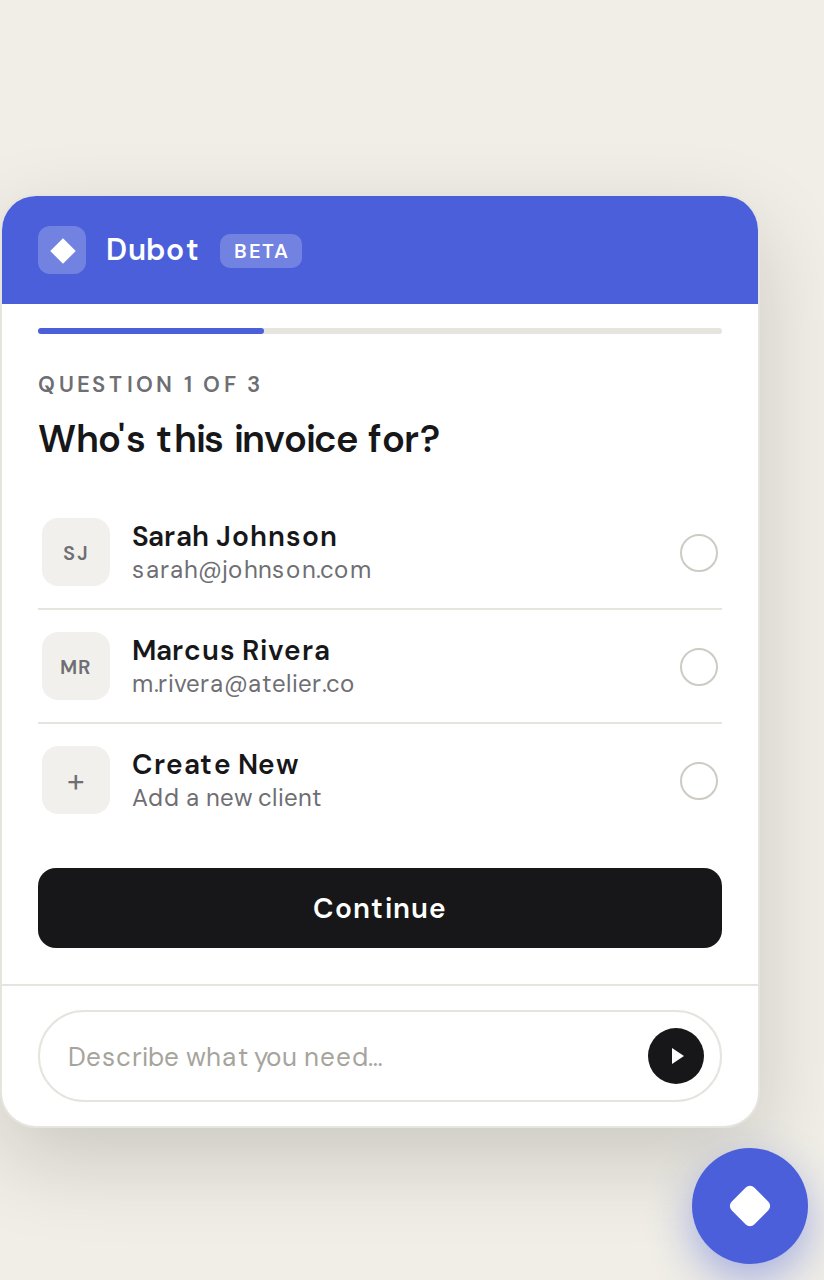
Check the Bubble's composer, greeting, and customer choices before publishing.
Test and publish
Select Save draft. Test the saved configuration in the Test experience, including identity, page context, placement, knowledge, and attached capabilities. Fix validation errors or missing dependencies before publishing. Select Publish and review the dependency check. Production reads published versions only. A published Wizard is still subject to the host’s identity, page, permissions, and supported actions.Actions are available only through an attached published Skill capability. A Wizard placement is
separate from the Resource Center, whose reserved Agent has no placement.